
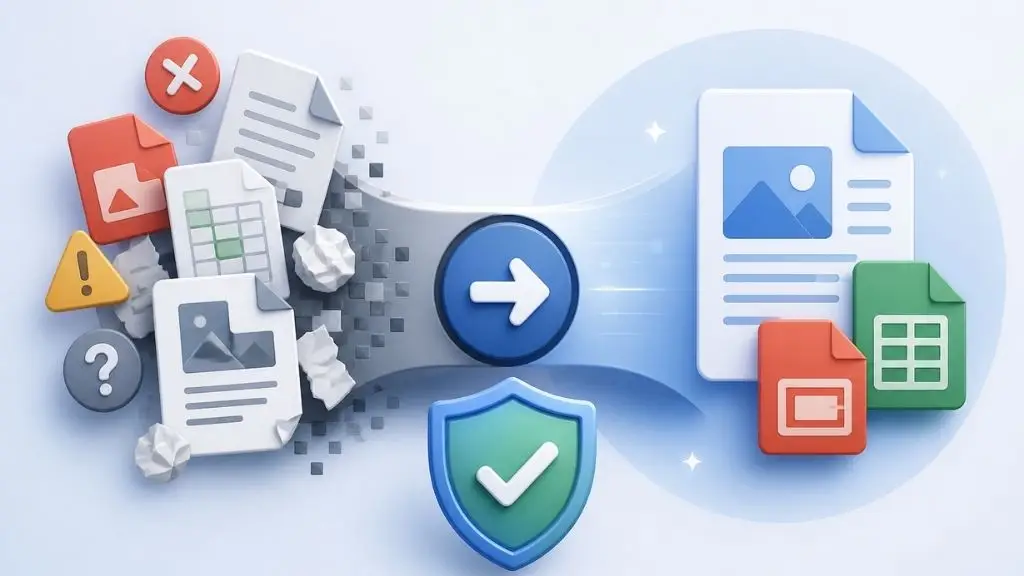
Most businesses deal with a lot of document conversion challenges. Contracts, patient forms, delivery receipts, invoices, handwritten notes, faxes. At some point, all of that needs to move into a digital format so staff can search it, share it, and use it.
That process is called document conversion. And while it sounds simple, it causes real headaches. Text comes out wrong. Tables fall apart. A scanned form becomes a mess of garbled characters. This post covers the most common problems and what actually fixes them.
What Document Conversion Covers
Document conversion means turning a physical or digital file into a usable format. Scanning paper forms and pulling data from them. Turning faxes and emails into structured database records. Converting old handwritten files into searchable digital ones.
Input can come from paper, fax machines, scanned image files, emails, or older electronic files. The goal is the same in every case: the information inside those documents needs to end up somewhere clean, accurate, and easy to use.
Businesses that handle high volumes, whether in healthcare, logistics, finance, or legal work, often rely on document conversion services rather than trying to manage everything in-house.
The Most Common Problems and How to Fix Them
1. OCR Gets the Text Wrong
OCR stands for Optical Character Recognition. It reads text from a scanned image and turns it into digital characters. When the source document is clean and clearly printed, OCR works well. When it is old, faint, skewed, or handwritten, the output can be bad.
A number that should read 8 comes out as a B. A date field shows up blank. Columns in a table get merged into a jumbled line. In healthcare or finance, those errors matter. A wrong number in a medical record or financial report is not just an inconvenience.
What helps:
- Clean documents before scanning. Fix tilted pages. Increase contrast on faint text. Remove smudges where you can.
- Use OCR systems trained on a wide range of document types. Newer systems handle messy inputs better.
- Build a review step in. Have someone check a sample of the output, especially for fields like totals, dates, or reference numbers.
- For handwritten documents, OCR alone often is not enough. A double-key entry process, where two operators each enter the data separately and results are compared, is more reliable for reaching high accuracy.
2. Formatting Breaks During Conversion
You put a neatly formatted document in. You get a scrambled mess out. This happens because different file formats store information differently. A PDF locks text in fixed positions. A Word document uses a flowing layout. A spreadsheet expects cells. Moving content between these formats means something almost always shifts. Sometimes the change is minor. Sometimes the layout falls apart entirely.
Common problems include tables losing their structure, headers ending up in the wrong place, scanned files that contain no actual text layer, and spreadsheets with merged cells or formulas that break during conversion.
What helps:
- Match your approach to the file type. General tools work for simple jobs. Legal contracts with tables or medical forms with multiple sections need more careful handling.
- Know the output format before you start. If converted data needs to go into an ERP or database, understand what structure that system expects.
- Test on a small batch first. Convert 20 or 30 files before running the full volume. This catches problems before they multiply.
3. Sensitive Data Does Not Get the Protection It Needs
Many documents contain private information. Patient records. Employee files. Legal contracts. Financial statements. When these move through a conversion process, there are real security risks if the right controls are not in place.
Files can end up in tools that are not encrypted. Metadata inside a document, like the author name, revision history, or location data, can expose information nobody intended to share. Any of these gaps can create a compliance problem for businesses operating under HIPAA, GDPR, or similar rules. The risks around data protection in document outsourcing are often bigger than teams expect going in.
What to do:
- Use tools and vendors that encrypt files before upload, during processing, and after storage.
- Remove metadata from files after conversion.
- Limit access. Only people who need to work on a document should be able to open it.
- Keep a log of what was processed, by whom, and when.
4. Version Mix-Ups
When documents go through multiple rounds of conversion and correction, it gets easy to lose track of which file is current. Someone converts a draft instead of the final version. Two people work from different copies at the same time. In a legal or compliance setting, that can affect decisions and produce records that do not match what was actually agreed.
Ways to stay on top of this:
- Store all source documents in one central location before you start. No working from local copies or email attachments.
- Use file names with a version number or date. invoice_v2_april2026.pdf is clear. invoice_final_FINAL.pdf is not.
- Always convert from the master file. If a correction is needed, update the master first, then convert again.
5. Mixed Document Types and High Volumes
Real document collections are rarely tidy. A business that has been running for 20 years might have thousands of files across dozens of formats. Old paper forms. Newer PDFs. Faxes. Emails with attachments. Some clean, some faded, some handwritten.
Running all of these through one single process usually does not work. A clean modern PDF needs different handling than a 15-year-old scanned form with notes in the margins.
What works:
- Sort documents by type before you start. Group printed documents together, handwritten forms together, faxes together. Each group gets handled with the right approach.
- Use batch processing tools that handle large volumes without needing manual input for every file.
- For ongoing intake where new documents arrive regularly, set up a defined workflow. Incoming faxes and emails go to a dedicated mailbox, get converted on a set schedule, and route to the right place automatically.
- Check quality batch by batch, not just at the end.
Teams dealing with large or mixed volumes regularly often look at back office processing options to handle this without pulling internal staff off other work.
6. Converted Files Do Not Fit Into Existing Systems
Converting files is only part of the job. Those files still need to end up somewhere. A CRM, an ERP, a database, a shared archive. Getting from conversion output to the destination without errors is its own challenge.
Common issues include file names that do not match what the target system expects, output formats the system cannot read, and data fields that do not map to the database structure.
How to handle it:
- Know what format your target system accepts before you start. This step often gets skipped.
- If the system has an API for importing data, use it. API imports are more reliable than manual uploads.
- Test the end-to-end workflow with a small sample before running the full batch.
Quick Reference: Problems and Fixes
| Problem | Why It Happens | What to Do |
|---|---|---|
| OCR errors and garbled text | Poor quality source documents | Clean docs before scanning, review output, use double-key entry for handwritten forms |
| Broken formatting | Format mismatch between source and output | Test small batches first, define output structure upfront |
| Data security gaps | No encryption or access controls | Encrypt files, remove metadata, limit access, use compliant vendors |
| Version confusion | Multiple copies, unclear file names | Central storage, dated file names, convert from master only |
| Mixed format errors | One approach for all document types | Sort by type first, use appropriate settings per group |
| Integration failures | Output does not match system requirements | Know system specs before starting, test end-to-end with a sample |
In-House vs. Getting Outside Help
For small volumes of simple files, doing conversion in-house is fine. Most teams can handle a few dozen PDFs or Word documents without specialist support. Things change when volume increases, document quality varies, compliance rules apply, or file types get complex. At that point, the time and error costs of handling everything internally tend to outweigh the savings.
Organisations that regularly process large volumes of paper, faxes, or scanned images often work with BPO partners who specialise in this. These partners handle scanning, OCR, handwritten data entry, validation, and output delivery as an ongoing service, with the staff and processes already in place to do it accurately at scale.
If that kind of setup fits your situation, it is worth understanding how a structured document conversion service works, including how accuracy is kept high through double-key verification and how data is protected through encrypted uploads and compliant operations.
Getting It Right From the Start
The businesses that run into the most trouble with document conversion are usually the ones that treat it as a quick, simple task. Small gaps in the approach create big problems in the output.
Define the output format before scanning starts. Sort the documents. Test on a small batch. Build a review step in. When volume or complexity is too high to handle internally, get help early rather than after the problems pile up. Worldwide Call Centers connects businesses with BPO partners that handle document conversion, back office processing, and data services across the US, Latin America, India, the Philippines, and South Africa. If you want to talk through your situation, the WCC team is happy to help.